
Download the app from the App Store or Google Play. It works the same on iPhone and Android. Sign in, and you land on Field.
The tabs
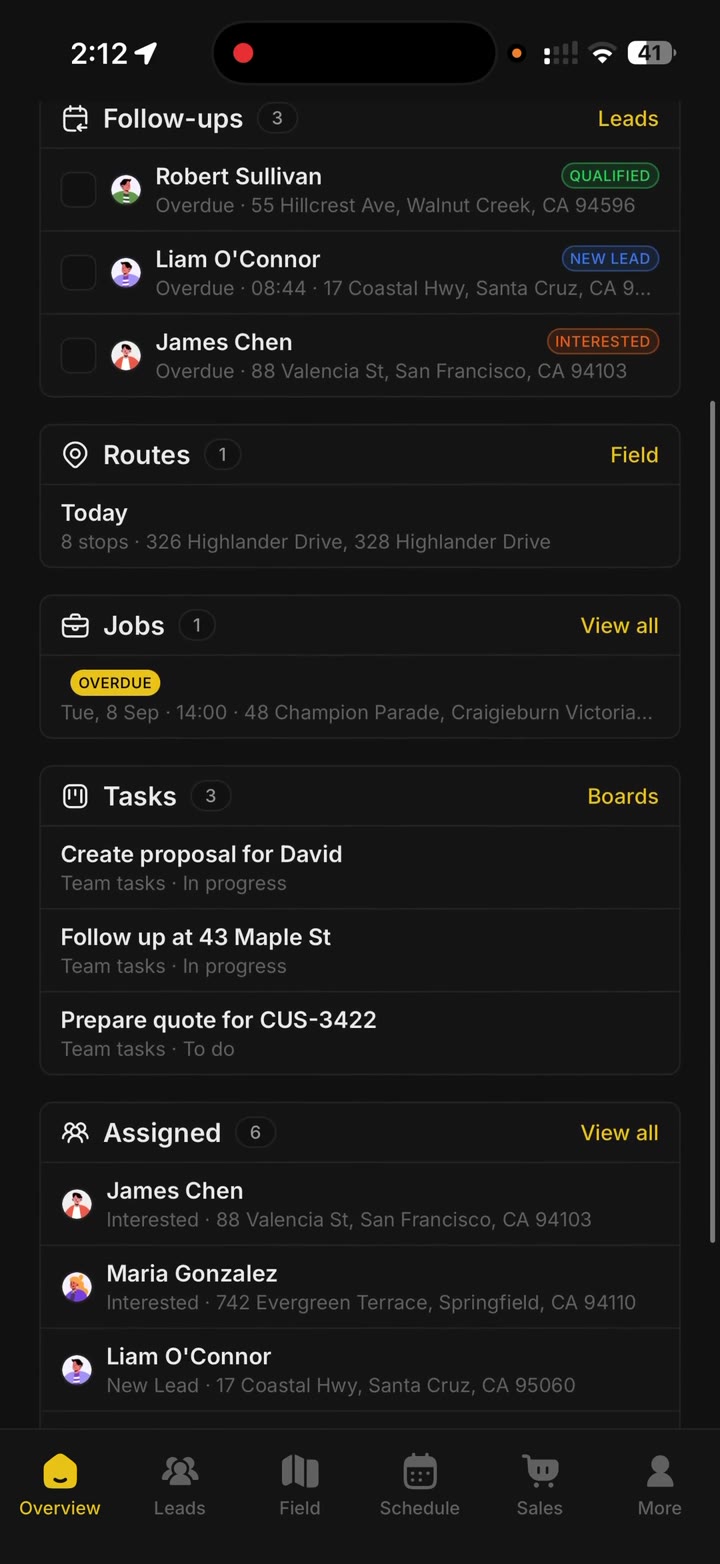
Overview is the big picture. It shows follow-ups that are due, appointments coming up, routes assigned to you, jobs, and tasks. Open it when you want to see what needs doing today.
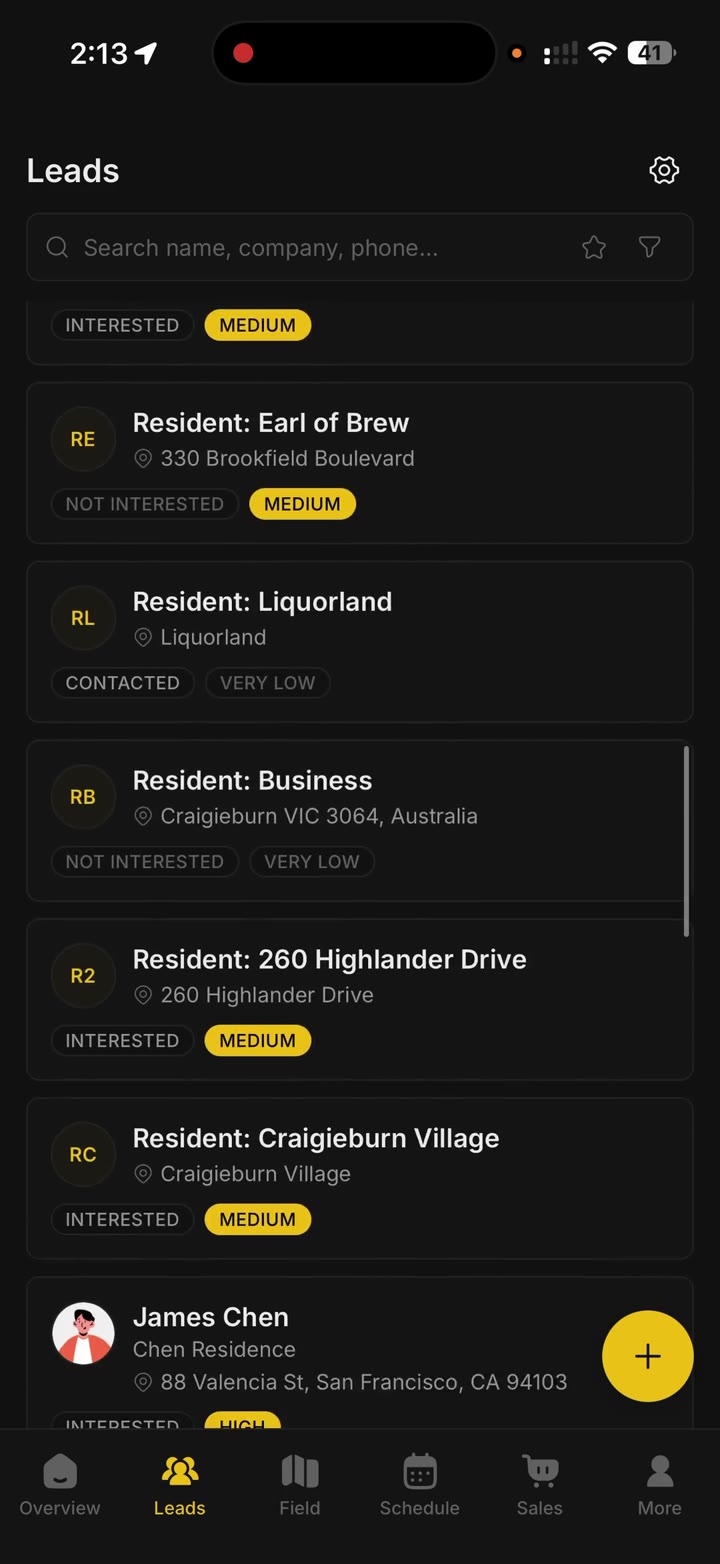
Leads is the people in your workspace, or the ones assigned to you. Add someone by hand, or bring a list in from a spreadsheet, Excel, or the contacts on your phone. You can do that on the web too.
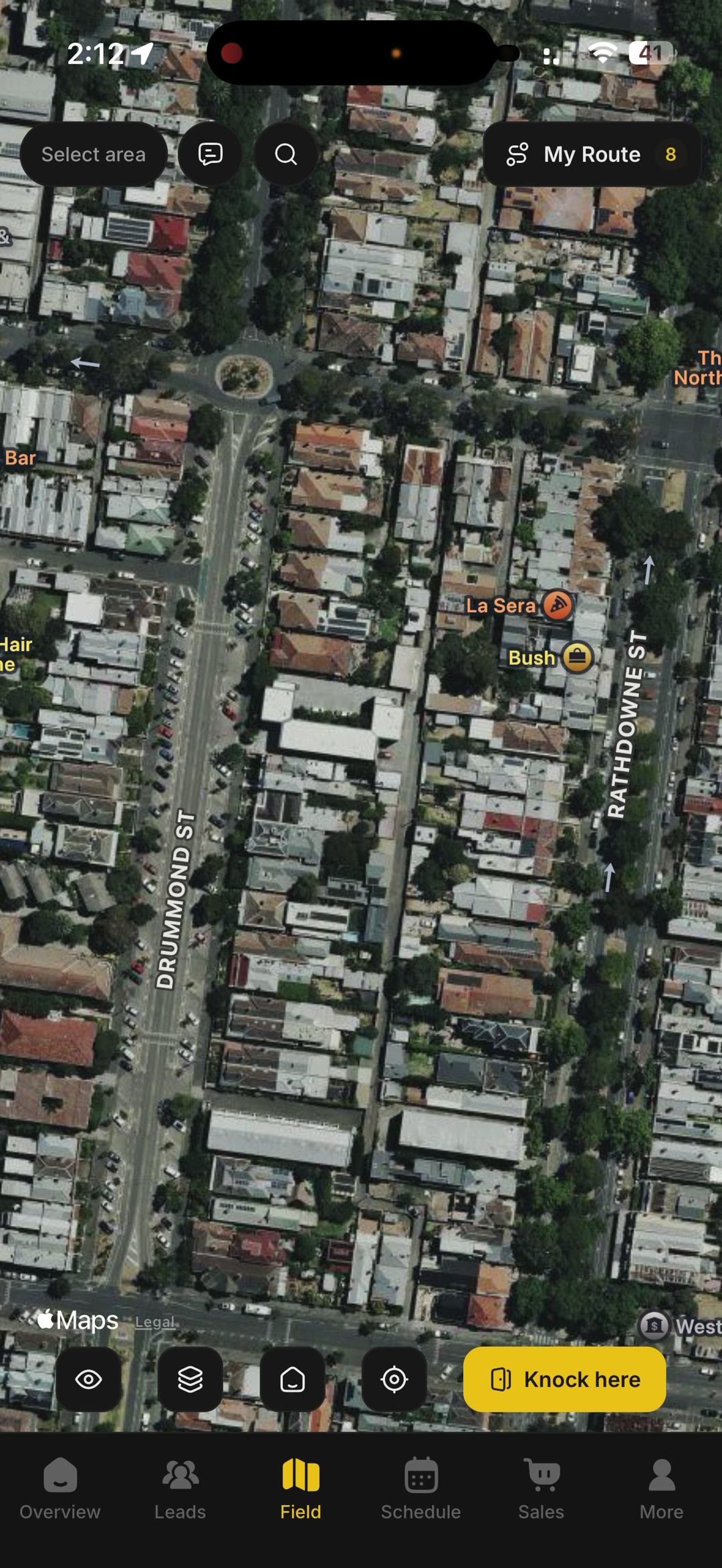
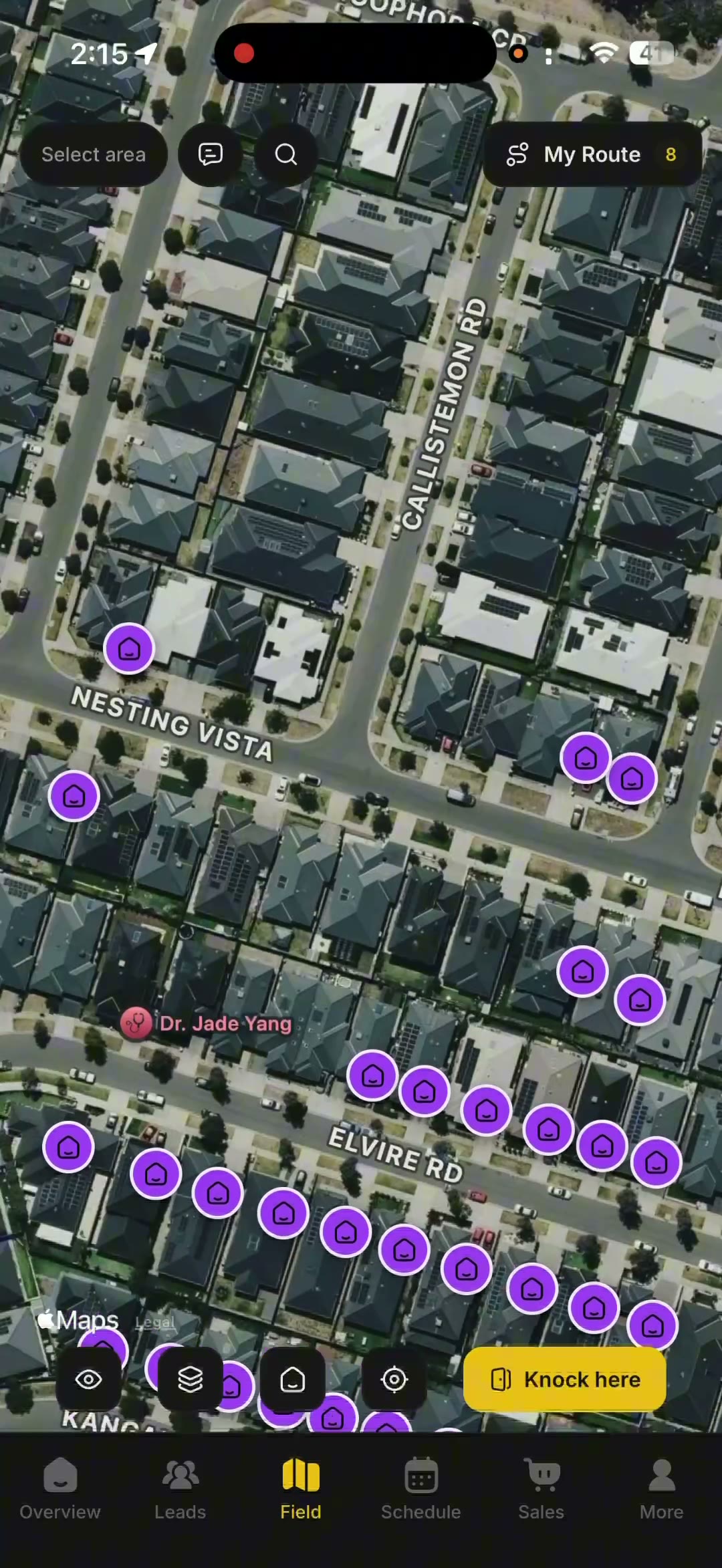
Field is the map you use while you knock. Tap a building to record what happened there. The next video goes through that.
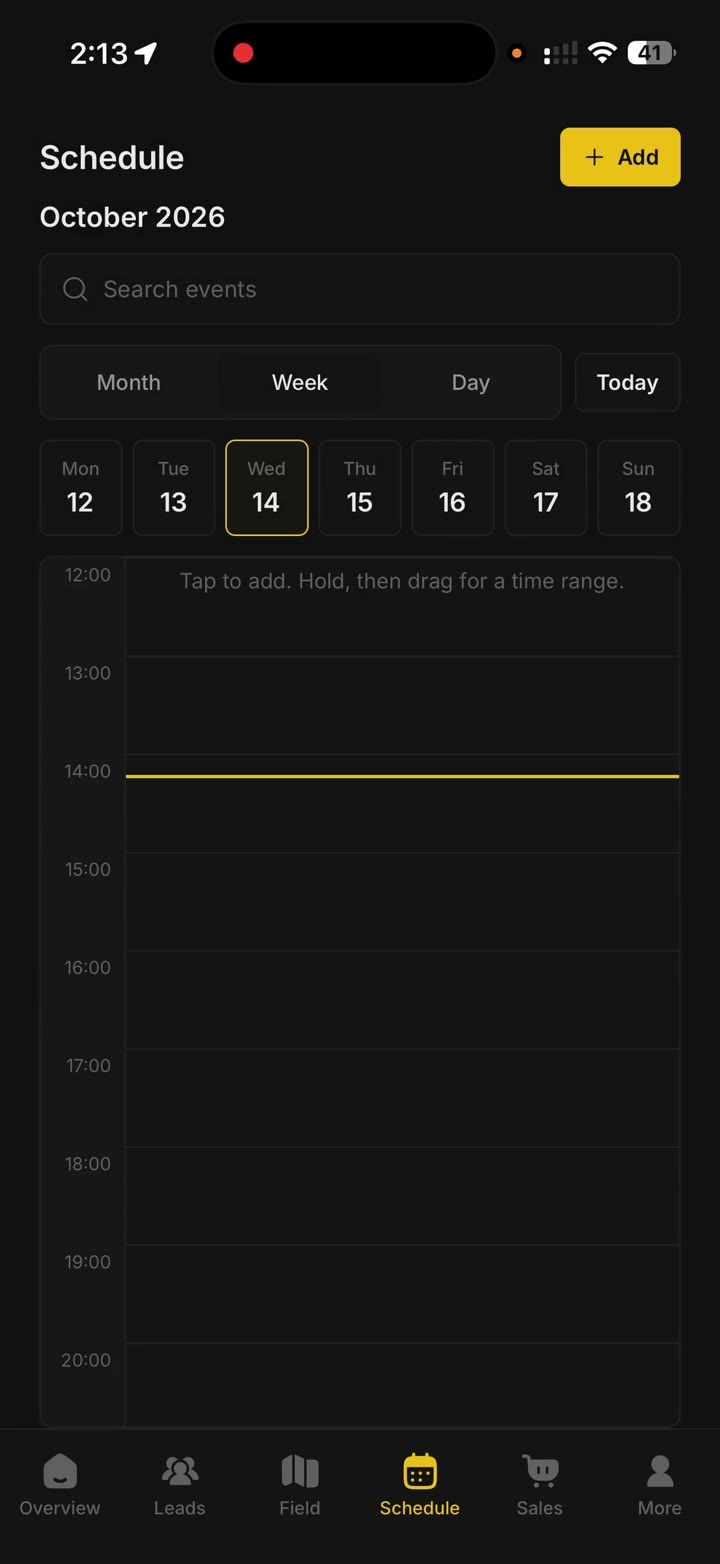
Schedule is for appointments and follow-ups. Connect Google Calendar if you want those to stay in sync, so you are not typing the same appointment twice.
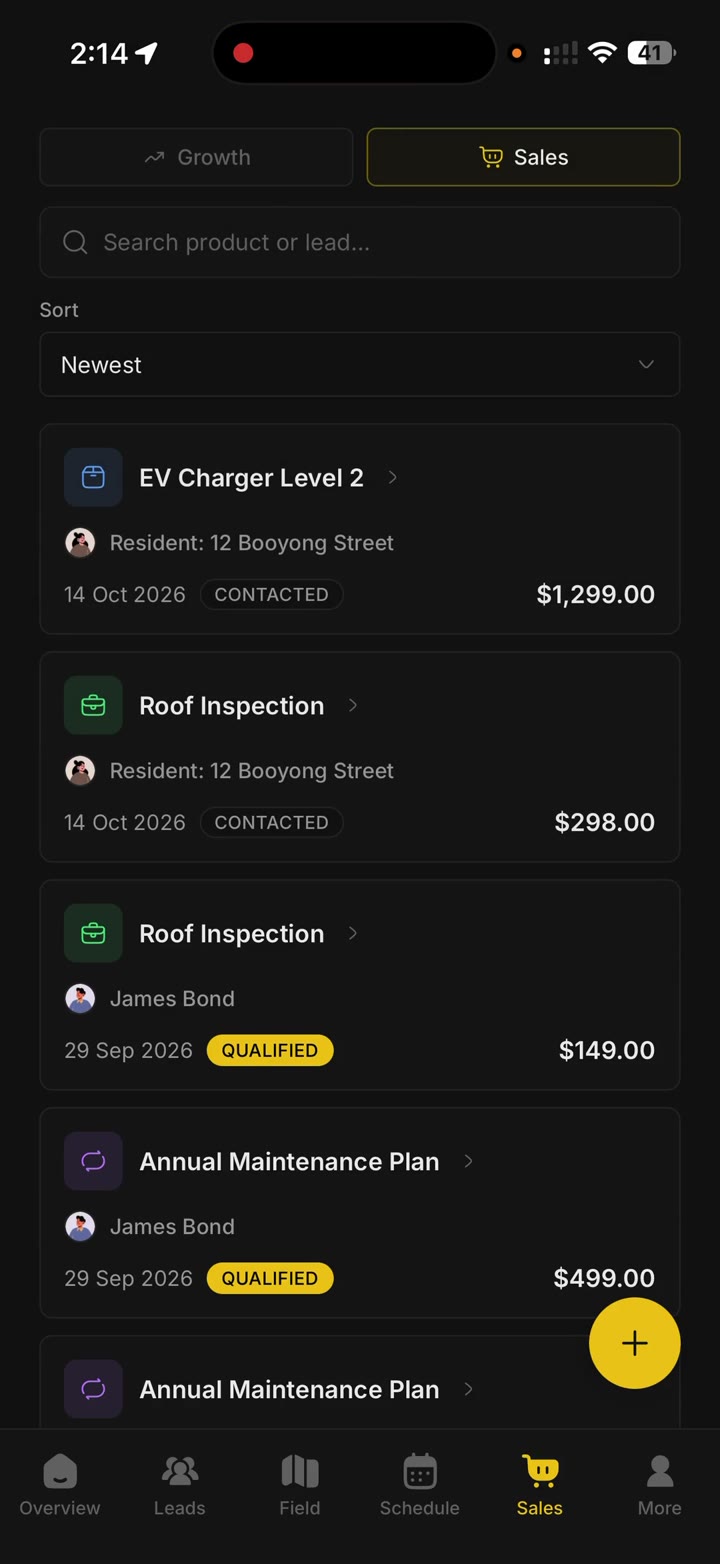
Sales is where you record a sale while you are out. That can be something you sell at the door, a service, or a plan that repeats. You can also bring sales in from a file, and look at how they are doing.
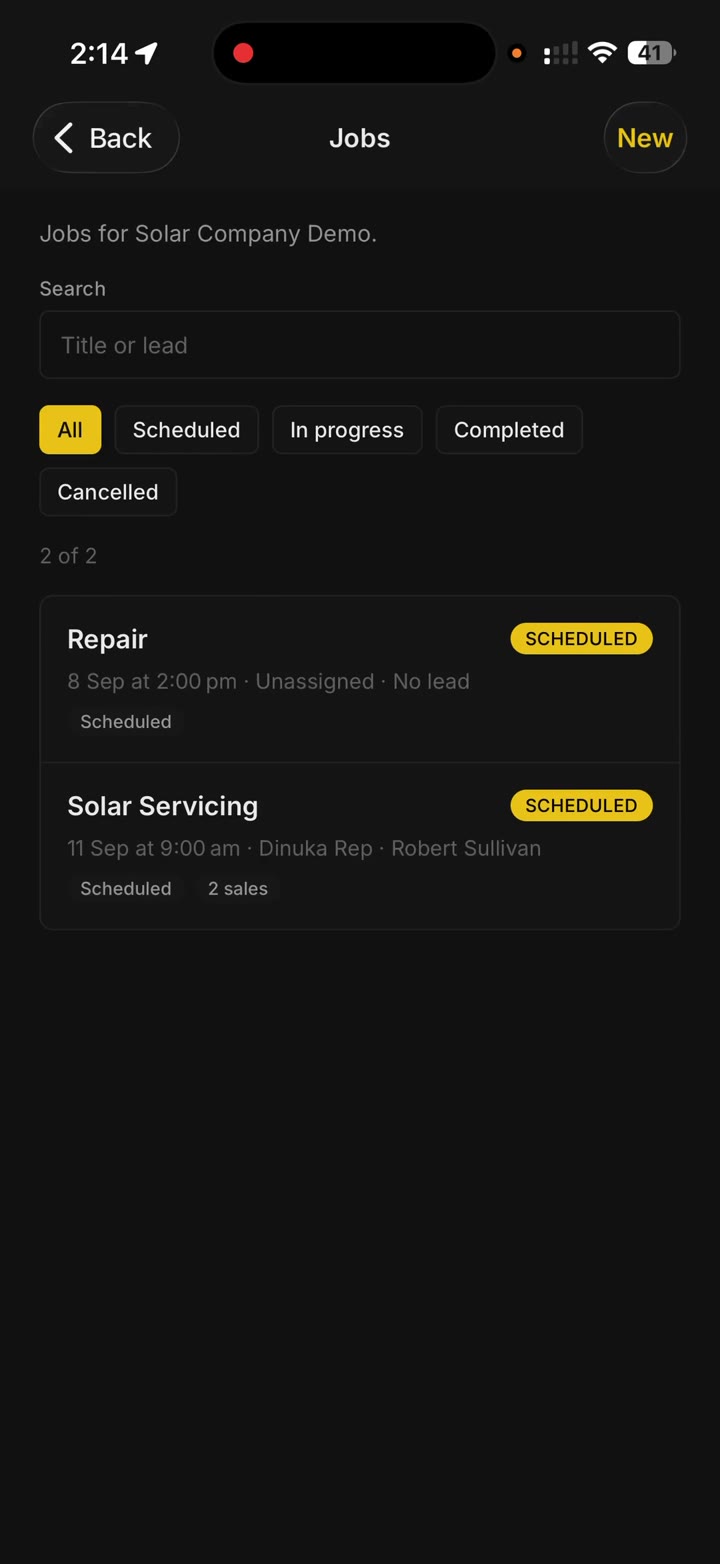
- Jobs you can hand to someone on the team
- Boards, if you like moving work across columns
- Forms, when you need to grab details on the spot
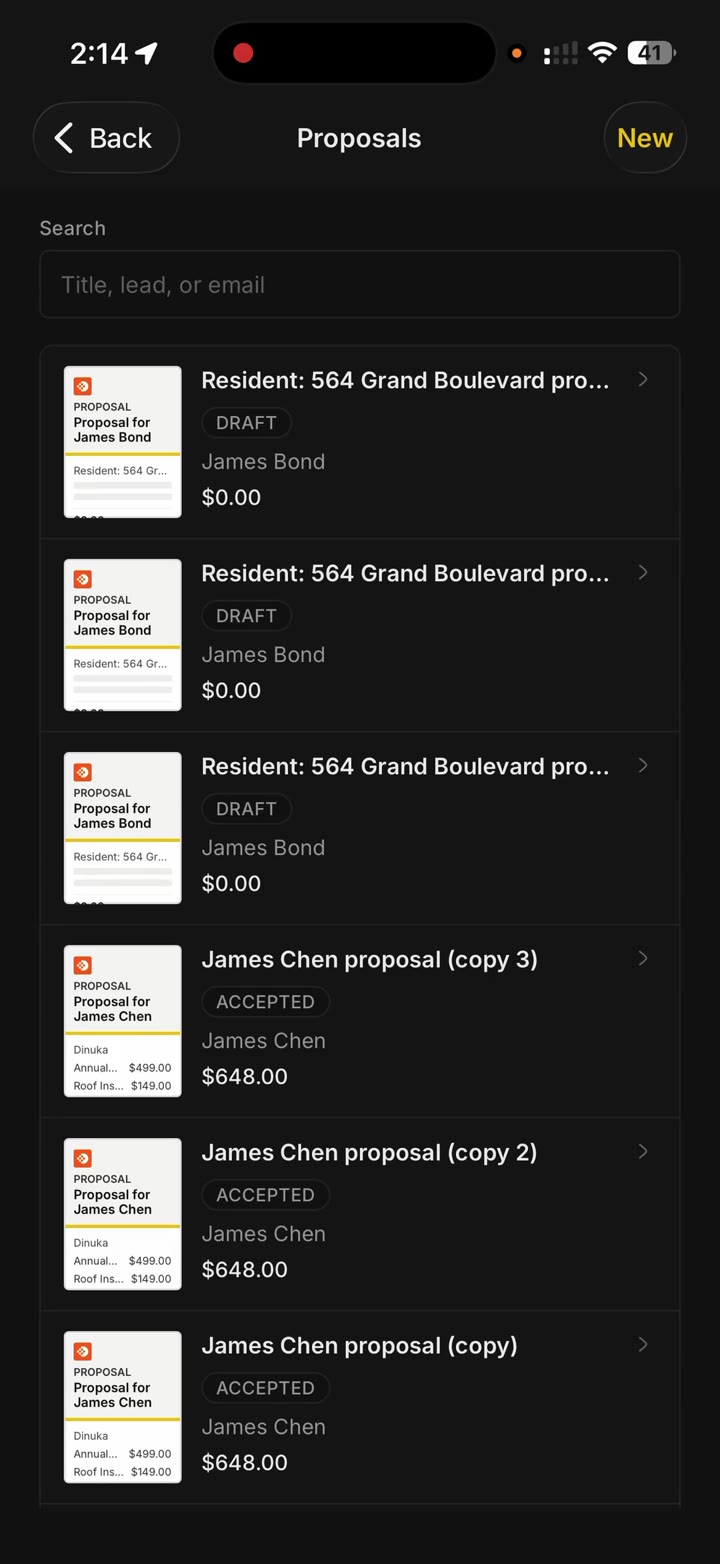
- Proposals, when you send a quote
Pin the houses
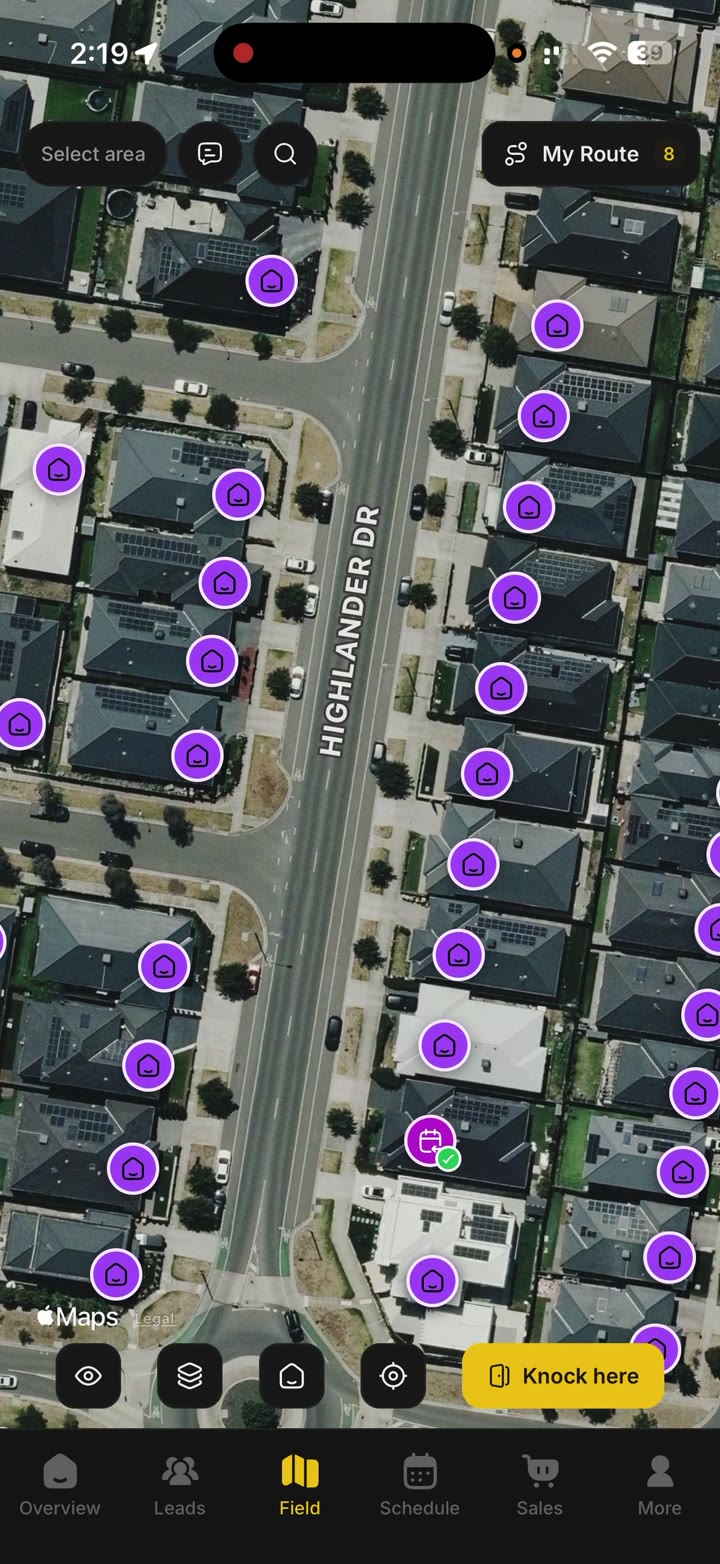
When a neighborhood is already worked, you will see pins on the homes. On a new street the map is empty. Tap the house button at the bottom. That opens Auto Pin.
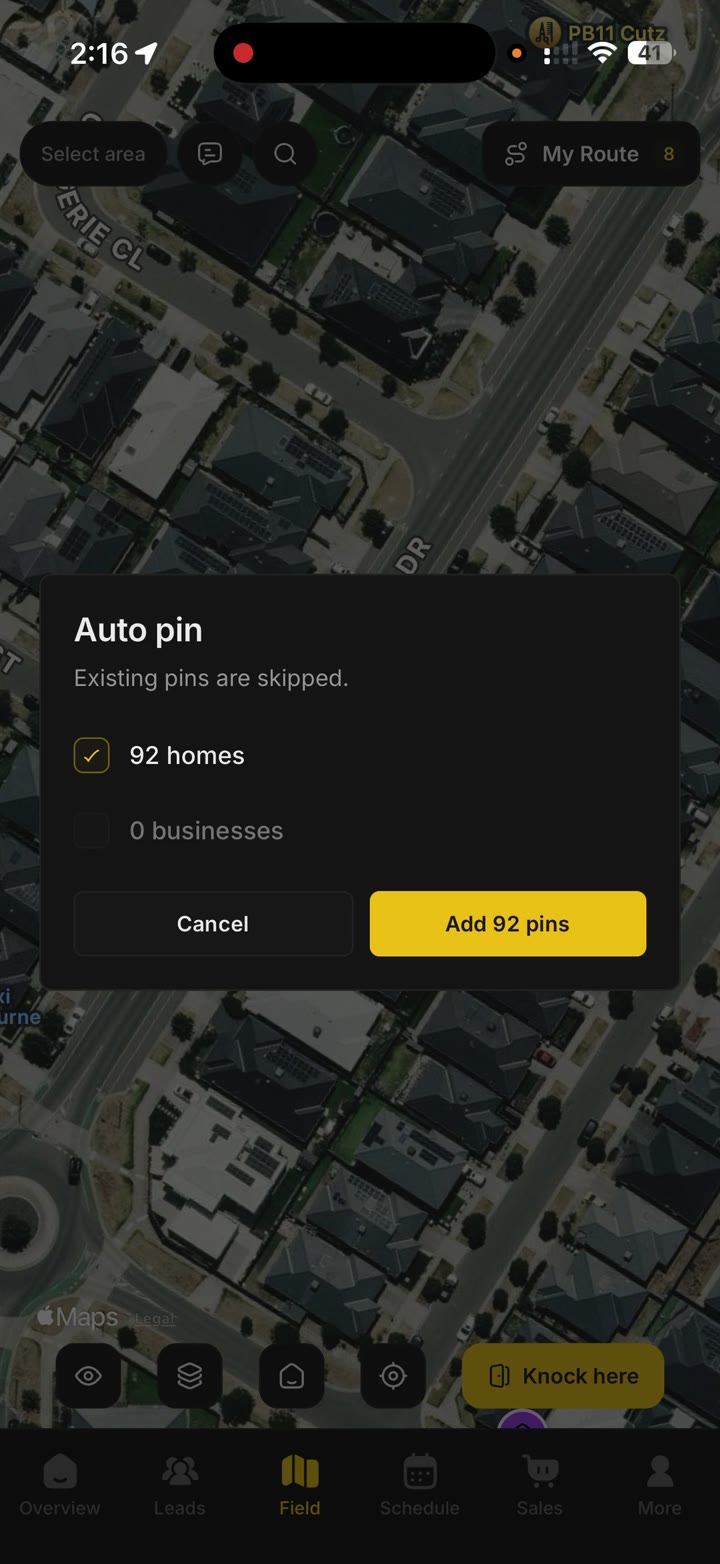
Auto Pin places a pin on homes and businesses for you, so you do not tap every house yourself. Turn businesses off if you only want houses. Tap Find places and give it a few seconds. It tells you how many it found. Confirm, and the pins show up. Then you can start knocking.
Open a house
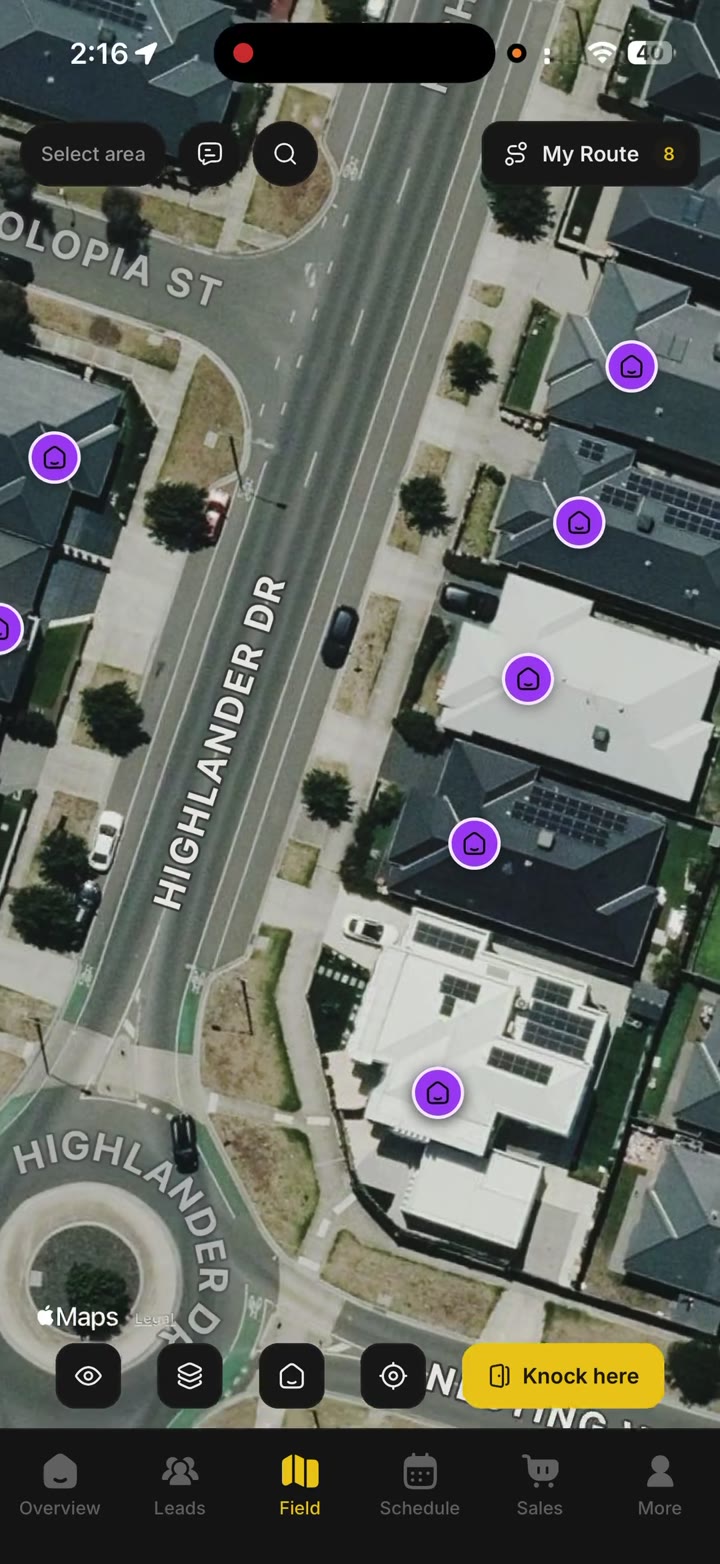
Walk up to a house and tap its pin. A dot on the map is you. The pin shows the address it found.
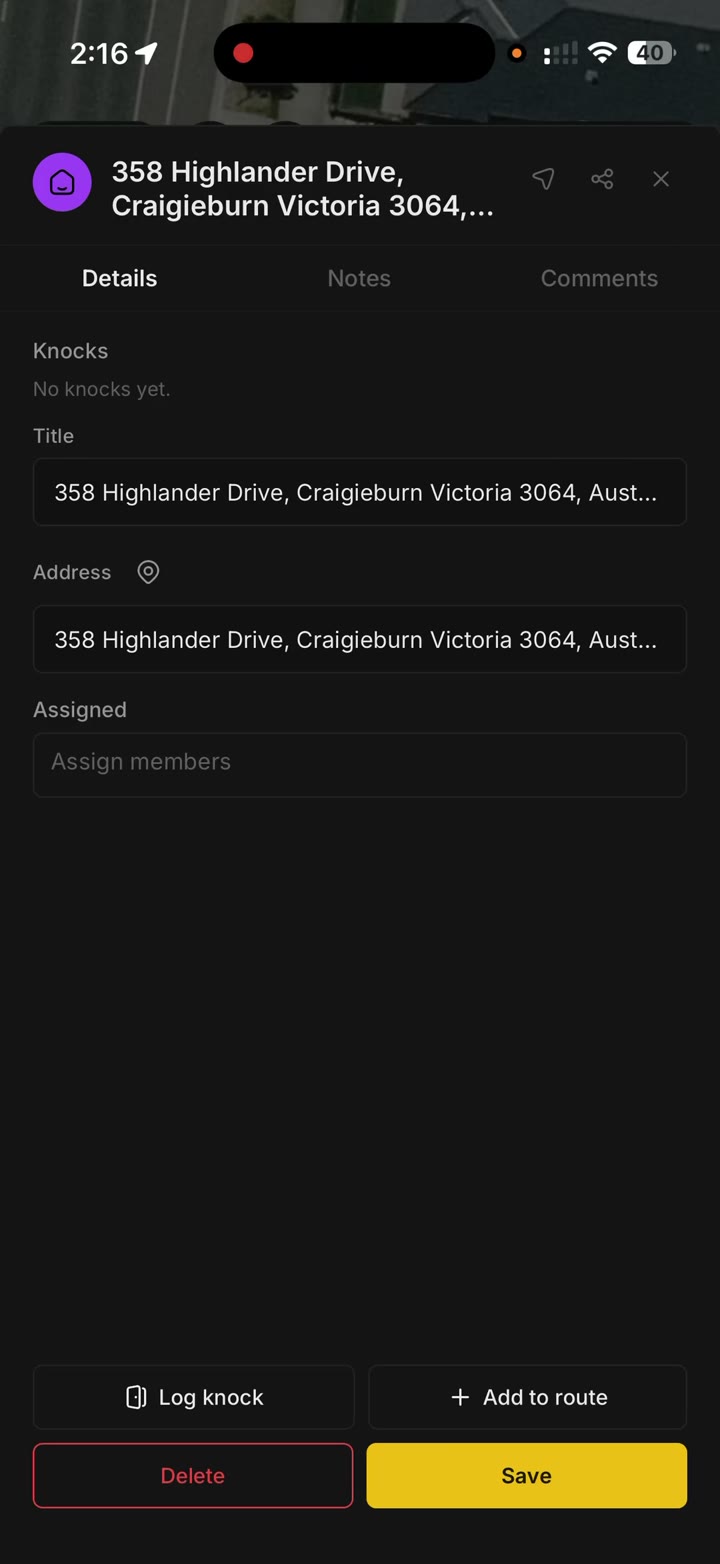
The first field is the title. The address sits on its own. The title is optional. Some teams rename a stop so everyone can tell the houses apart. One house might be getting one kind of solar, and the next house a different kind. If you do not need that, leave the title as the address.
- Assign the house to a teammate. You can add more than one person.
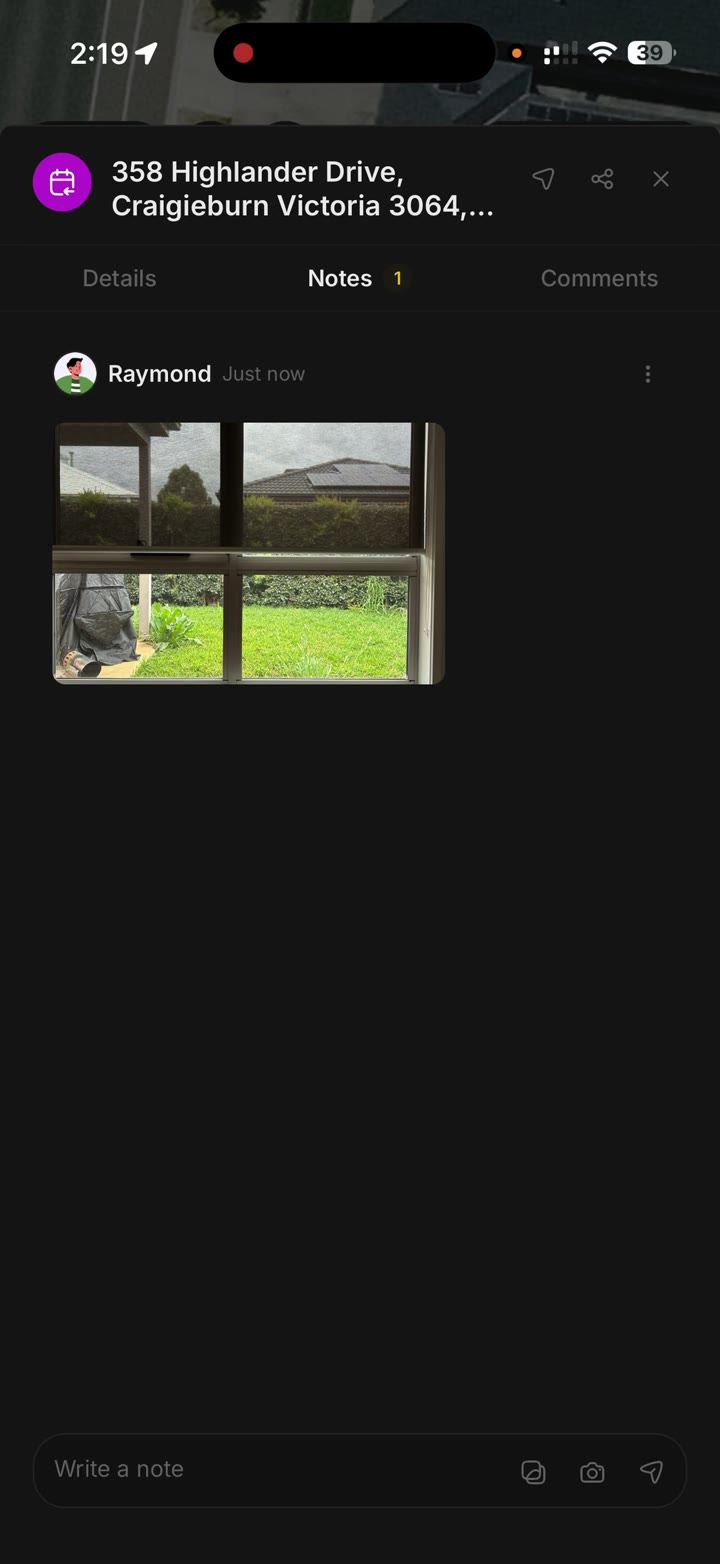
- Notes are for a photo or a short note, so the team knows what is going on there.
- Comments are for a conversation. You can reply and tag someone.
Log a knock
Tap the pin, then tap Log knock at the bottom left. You will see the outcomes for your workspace. You can change those words later in workspace settings.
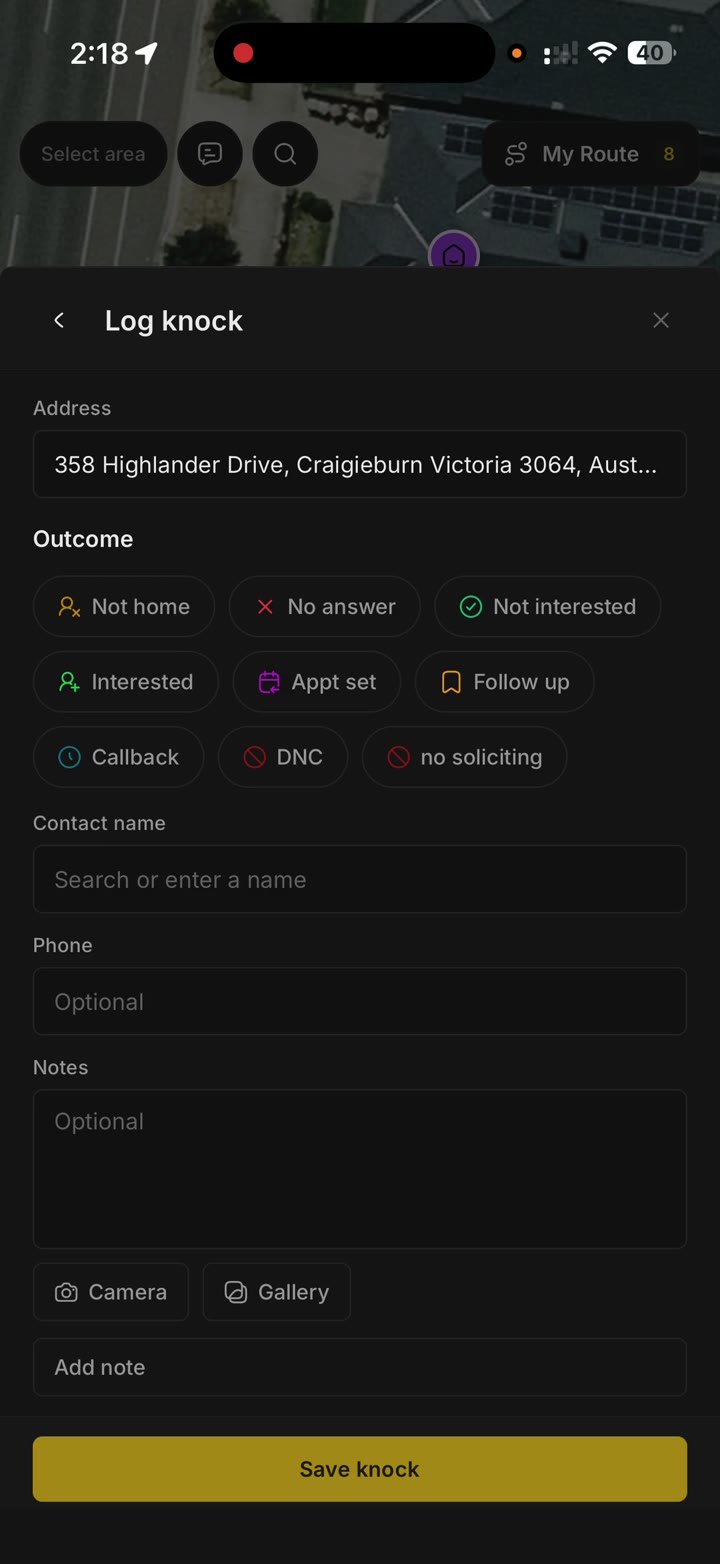
Pick what happened. If they were interested and want another visit, choose that one. If you got their name, add them as a lead right there. Type the name. If they are already in your leads, you will see a suggestion. Add a phone number and a note if you have them.
Take a photo if it helps, like the roof, and attach it to the knock. Then save. The pin updates on your teammates' phones and on the web right away. The icon changes, and a tick shows you have been there. Tap it again to see everything that happened at that address. Then do the same at the next house.
Plan the day
My Route is in the top right. Use it in the morning when you know the street and you want the houses in order.
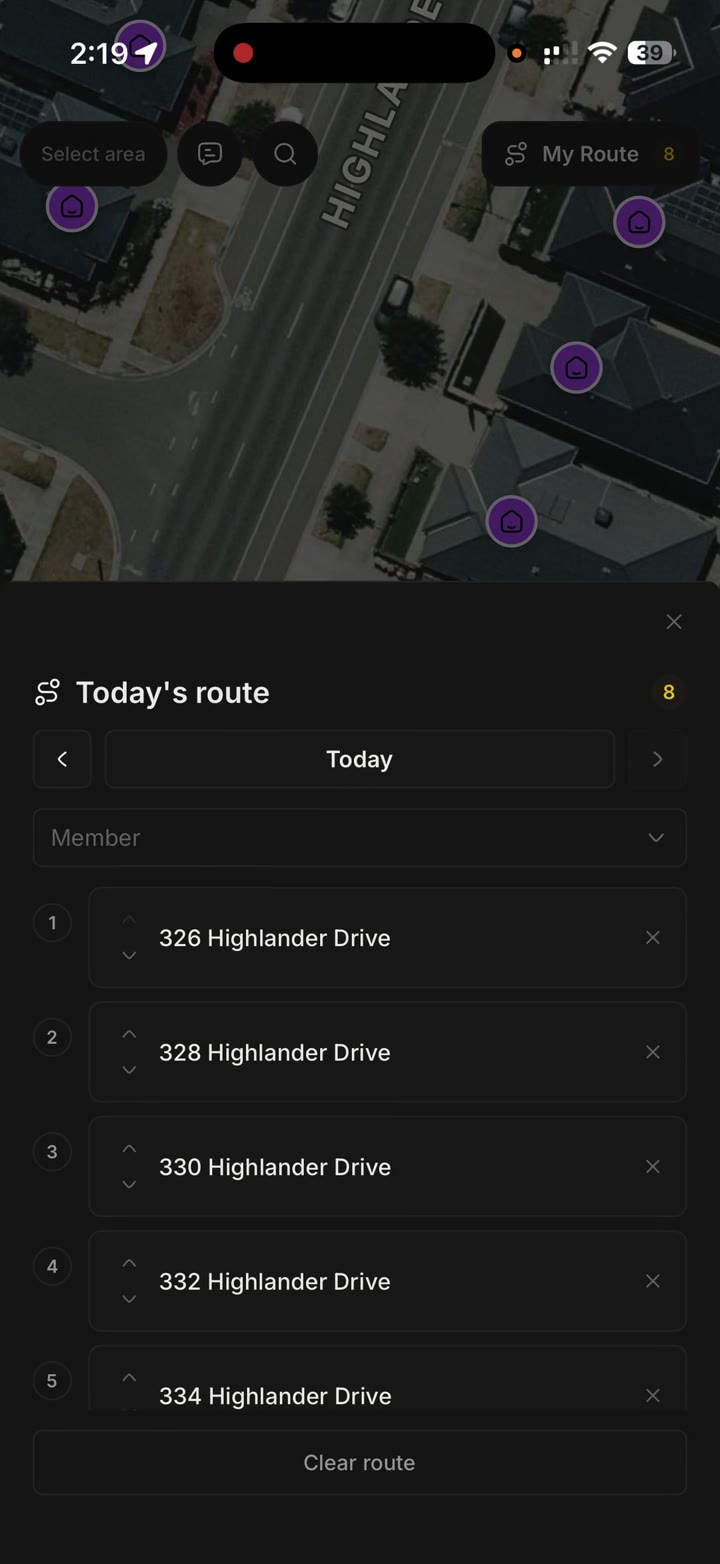
Clear an old route if you want a fresh start. Tap a house, then Add to route. Do that for each stop. Open the route and tap a stop to go to that house and finish it.
You do not have to build this by hand. Smart Routing on the web can lay the route out for you. That is coming to the phone apps as well.